An extension for Visual Studio Code to provide better tools for making Friday Night Funkin' mods. Most notably, it allows you to use Haxe's Completion Server for type resolving, local code documentation, static code checking, etc.
In addition, build-in debugger for the game will help you with quick iterations to your mod as well as debugging console with dynamically changing the properties of your mod and both PC and Android versions of the game.
Setting up
Make sure you have installed Haxe since this extension makes heavy use of Haxe extension for providing autocompletions and many other features.
Then, search for Funkin Compiler in the "Extensions" section of VS Code and install it. Now run the Funkin FCPKG: Setup Haxelib task (You can do so by bringing up the command palette with Ctrl+Shift+P and typing in the command).
You will be asked which "fcpkg" package. We will come back to what that is later, but for now just select the version of the game you want to be modding (if unsure, select the latest "V-Slice" option).
Now you'll need to wait a bit for the installation. After it's done, you should see a notification in the bottom-right corner. While not required, it is recommended to close VSCode and open it again to make sure everything loads up correctly (or run Developer: Reload Window command).
Using Funkin Compiler
The extension primarily works with V-Slice mods, but can also be used inside the "assets" folder in the source code of the game.
To start, create a new folder within the "mods" folder of the game (alternatively, you can copy existing mod to that folder or just open any of the mods already place there) and open it with VSCode.
Editing your Friday Night Funkin' mod
Once you open the mod you want to edit, you might receive a confirmation to apply patches for the vshaxe extension. This patch allows you to edit .hxc files as regular Haxe files.
If you want to edit any script files in your mod, make sure their name start with the upper-case letter (you'll receva a warning if it doesn't).
Due to a quirk with the Haxe Language Server, trying to edit .hxc directly will cause some features to stop working.
Available features
Friday Night Funkin' debugger
The funkin-run-game debugger is used to launch the game instance. Most notably, it supports soft-restarts (restarting will cause an in-game reload instead of re-opening the game's executable) and "Debug Console", which gives you access to the variables registered with ModStore.
It can also be customized with additional configuration options. We'll look at the most important ones:
execName: Name of the executable to launch.attachDebugger: If enabled, adds the "debug" mod to your instance before starting it.cmd_prefix: Prefix for the launch command. The only practical use for it is launching a Windows instance of the game using "wine" on Linux.
To start, in Run and Debug click "create a launch.json file", from the menu select Run the FNF: V-SLice instance. Now you should have a basic configuration that will lauch FNF version native to your platform.
Here's how you can further customize your launch configuration:
{
  "version": "0.2.0",
  "configurations": [
    {
      "type": "funkin-run-game", // Start FNF game
      "request": "launch",
      "name": "Compile & Run FNF mod on V-Slice engine (using wine)",
      "cmd_prefix": "wine ", // Use wine to launch the game
      "execName": "VSliceEngine.exe", // The exact executable name. (On mobile, it's the package name of the app)
      "attachDebugger": false, // Don't add the "debug" mod
      // Add these two lines if you want to test your mod on the connected Android phone
      "isMobile": true,
      "preLaunchTask": "Funk ADB: Copy this V-Slice mod to mobile",
    },
  ],
}
You probably noticed the mention of "connected Android phone". Here by "connected" we mean "a device available in adb".
If you want to make use of this capability, install the Android SDK Platform Tools (there are a couple of tutorials on how to install them) and enable "ADB debugging" in Developer Options.
If everything works correctly, running adb devices should give you something like:
[mikolka@AcerGo ~]$ adb devices
List of devices attached
29291FDH300EVG  device
Now, to launch the debugger on your phone, add a launch configuration like this:
{
  "version": "0.2.0",
  "configurations": [
    {
      "name": "Launch current mod on mobile",
      "type": "funkin-run-game",
      "execName": "me.funkin.fnf",
      //Default package name. Change this if you're using a V-Slice fork with different package name.

      "isMobile": true,
      "preLaunchTask": "Funk ADB: Copy this V-Slice mod to mobile",
      "request": "launch",
    },
  ],
}
If you want to use a application other than "me.funkin.fnf", you'll also need to create .vscode/tasks.json with the following contents:
{
  "version": "2.0.0",
  "tasks": [
    {
      "type": "funk-mobile",
      "modName": "",
      "packageName": "me.funkin.fnf",
      //Default package name. Change this if you're using a V-Slice fork with different package name.
      "problemMatcher": [],
      "label": "Funk ADB: Copy this V-Slice mod to mobile",
    },
  ],
}
Hints in .json files
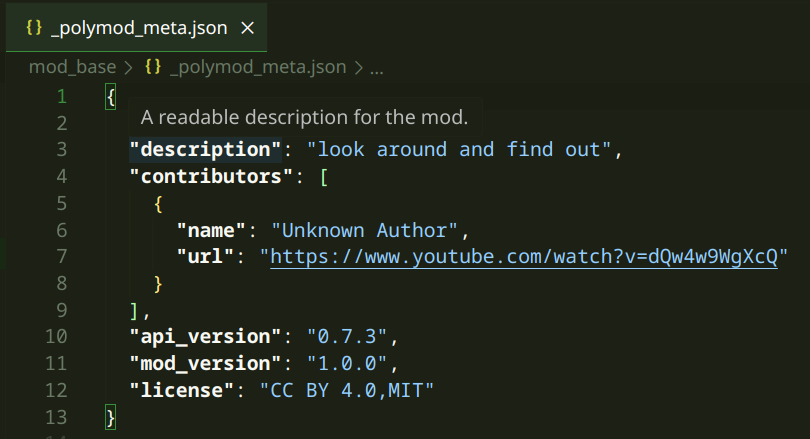
Many .json files in your mod will get additional type hints, letting you check the syntax and see what you can type into them. Many schemas are also covered by other articles like Note Styles, Albums, etc.
Static code checking
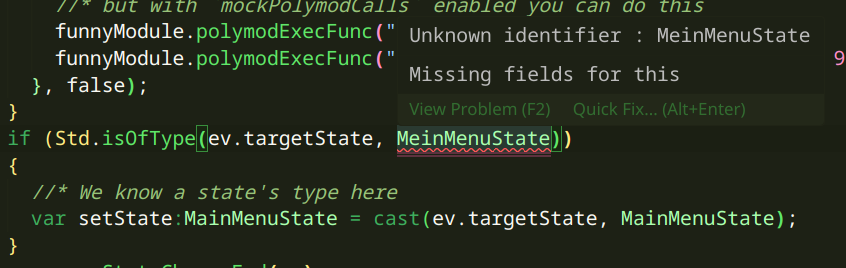
VS Code will be able to statically check the syntax of your code and detect any misspellings or other typing errors.
Here, we cast ev.targetState to OptionsState after confirming with Std.isOfType that it's actually the state we're looking for.
Code autocompletion
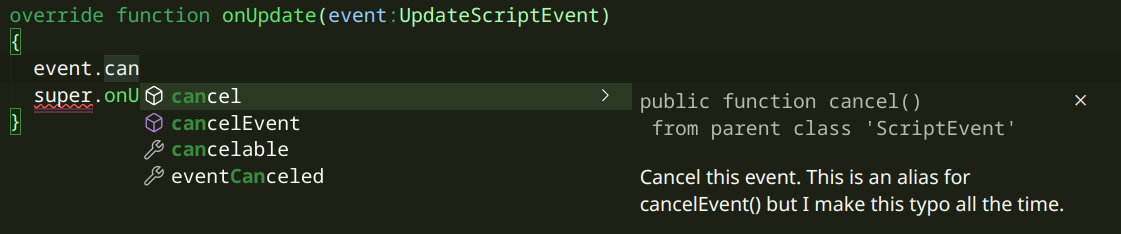
When typing, you'll notice this autocompletion window appear from time to time. Using the arrow keys, you can navigate through the different ways to complete the line. You can also continue typing and press "Enter" to complete the line.
Blacklist detection
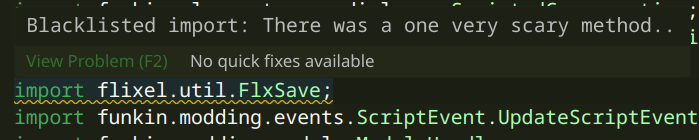
The extension will also warn you when importing a known blacklisted class. In most scenarios, trying to import such a class will likely disable the faulty scripted class entirely. You should avoid doing that.
Customizing the extension
In this section, we will look into technical additions that might be useful for further customization of Funkin Compiler:
Additions for launch configuration
Funk: Compile current V-Slice modtask (not command): Compiles the currently opened Funkin Compiler project to the FNF instance.Funk: Export current V-Slice modtask: Same as above, but doesn't copy the mod to the game.Funk ADB: Copy this V-Slice mod to mobiletask: Copies your mod to the connected device. You can customise it if you want to use it with FNF Engines based on V-SliceFunkin compiler: Make new projectcommand: As mentioned previously, creates a new Funkin Compiler project.
Extension options
These options can be configured using the "Settings UI" under the Extensions > Funkin Compiler section:
funkinCompiler.modName: The name of your mod in the game instance. By default, it's "workbench".funkinCompiler.gamePath: Path to the game folder. (If you remove this path, you'll be asked for it again when launching an FNF instance.)funkinCompiler.haxelibPath: Path to your haxelib folder. This should be set when running theFunkin compiler: Setup Funkin compilercommand.
Using the built-in mod template (Mode 1)
 Caution
This feature does not support new mod format introduced in 0.9.0 version and as such will be removed in the next major update of this extension. Make sure to migrate by compiling your mod and using the output of it for further development.
To start, use the Funkin compiler: Make new project command to create a new mod project. You will be asked to type in or select a folder for it.
Now let's take a look at the newly opened project. There are a couple of interesting files and directories in it:
-
assets/mod_base: This folder holds most of your mod's files. In structure, it's exactly the same as any other Friday Night Funkin' mod. However, some assets (like songs and scripts) have their own dedicated directories. -
assets/fnfc_files: Here you should put all the songs you want to include with your mod. Simply copy the.fnfcfiles of your songs, and the extension will automatically add them to your mod. -
source: Here you can create script files for your mod. This doesn't differ much from writing.hxcscripts, but:-
All scripts must have the
.hxextension (instead of.hxc). -
Using Package names is mandatory.
-
-
funk.cfg: This file keeps the information about the paths to the directories we just mentioned. For instance, if you would like to move the song directory fromassets/fnfc_filestomodSongs, you would change themod_fnfc_foldervalue in the config tomodSongs. -
checkstyle.jsonandhxformat.json: These can be used to tweak code formatting, but this article won't go further into that.
Once you're ready to test your mod, press F5 (or use the "Run and Debug" tab to select the run action) to both compile and launch your mod.
If you haven't done so, you'll be asked to provide a directory with the Friday Night Funkin' instance you want to test your mod with. While it's recommended to use a fresh install of the game, nothing is stopping you from using your active instance.
By default, this will create two mods (and remove their previous copies) in the selected instance: "workbench" and "debug". In addition, your mod will also be placed in the "export" directory of your mod project.


